Clean Subtitles on Any Clip, First Draft to Final Export
Three ways to get the text in — generate it from speech, type it yourself, or import a subtitle file — then one review pass that fixes the wording, lands the timing, and settles the style before you export.
यह पोस्ट अभी तक आपकी भाषा में उपलब्ध नहीं है, इसलिए अंग्रेजी संस्करण दिखाया गया है।
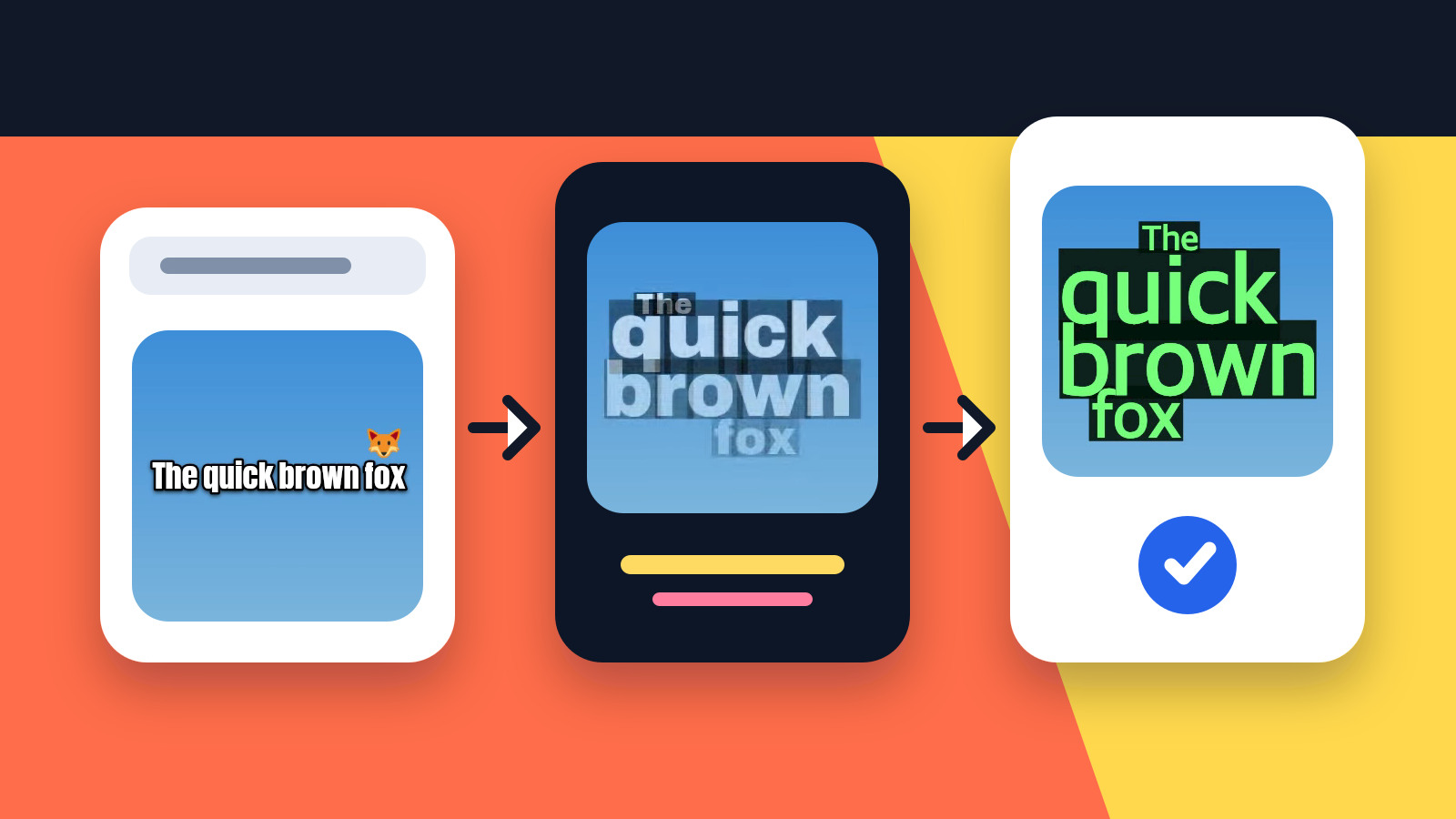
Subtitling goes better when you treat it as a short editing process rather than a single button. The text gets into the project one way or another, and everything after that is review: correct the wording, adjust when each line appears, settle on a style, watch the whole clip, export it.
CloudCap follows exactly that sequence for short videos. It turns speech into timed captions, lets you review the wording and timing, applies a caption style, and exports the captioned result.[2] The same order holds when you type the subtitles yourself or start from a subtitle file you already have.[3]
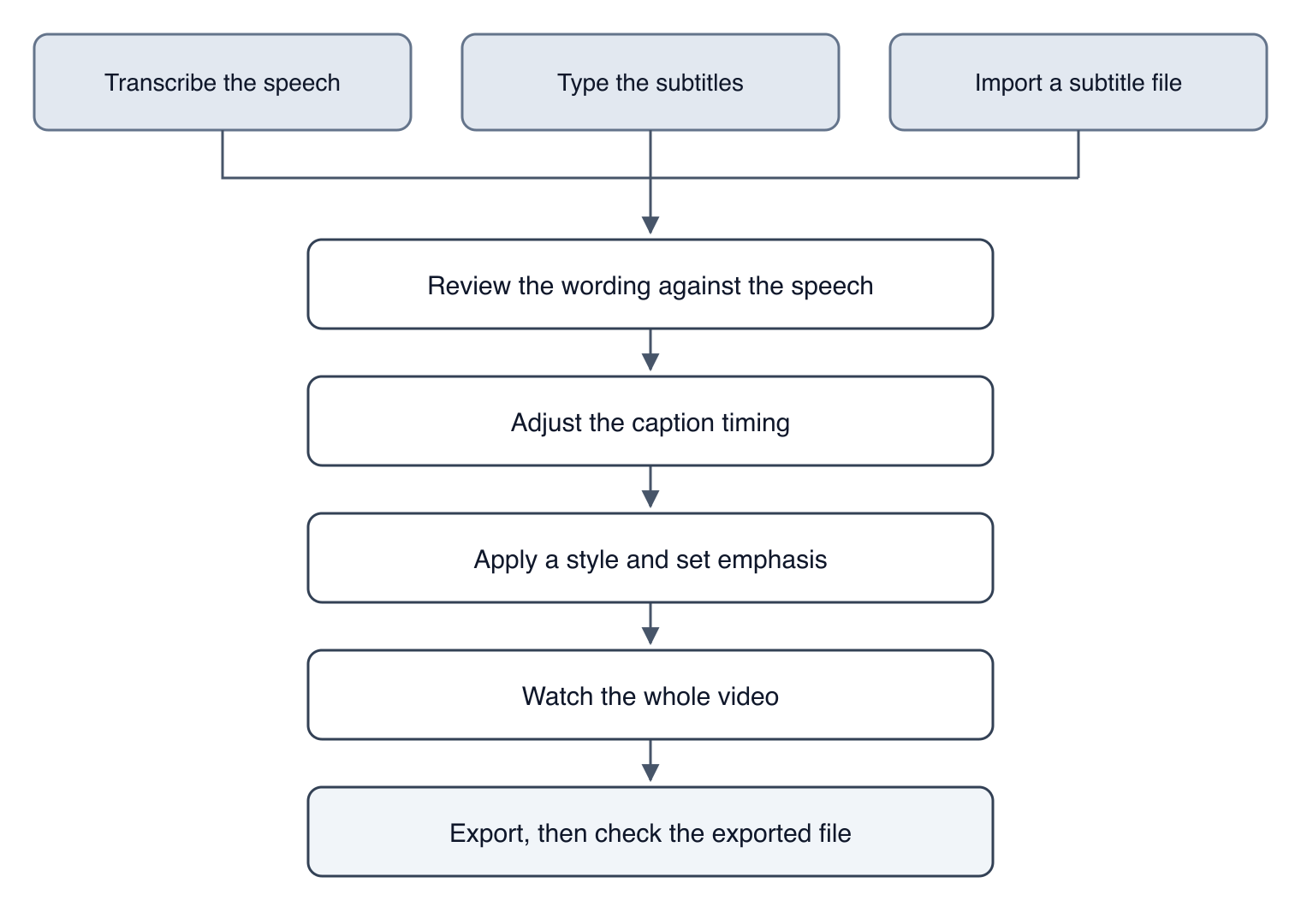
Choose how the subtitles get in
There are three practical starting points.
- Generate captions from speech. Use this when the video already contains the dialogue you want to subtitle. CloudCap can generate timed captions from that speech and leave both the wording and the timing open for review.[2]
- Type the subtitles yourself. Use this when the clip is short, when the exact wording already exists, or when you want direct control over every line. Manual entry is a documented alternative to using a subtitle file.[3]
- Import an existing subtitle file. Use this when approved text and timing already live in a supported file. Importing saves you from rebuilding that work inside the editor.[3]
Which route to take depends on what you already have. As editorial guidance drawn from those documented input methods:
- Speech but no transcript: start with automatic transcription.
- Final text but no subtitle file: type it in.
- A finished subtitle file: import it and go straight to review.
Whichever route you take, treat the first version as a draft. The steps that follow are where the subtitles start saying the right thing at the right moment.
Add the video and make the first pass
Open your caption editor, add the video, then use the method you chose.
Start with automatic transcription
Run the automatic caption generator and wait for the timed text to appear. In CloudCap, this step converts speech into timed captions, and the generated wording and timing can then be reviewed before you choose a style and export.[2]
The goal here is an editable draft, nothing more. Styling this early splits your attention between how the captions look and what they say, which makes wording problems easier to miss.
Type the subtitles manually
Build each caption from the script or the approved wording, then place it against the matching speech. Manual entry sits alongside subtitle-file import as one of the documented starting methods.[3]
Work through the clip in order. Add a line, position it, play the surrounding section, then move on. Keeping entry and timing in the same loop saves a second pass later.
Import a subtitle file
Choose the option to add subtitles from a file, then load the file into the project. Using a subtitle file is a documented alternative to manual entry.[3]
Then review the result against the video anyway. Text written elsewhere can still need correction, and its timing may not line up with the particular file you are exporting.
Correct the wording before you style anything
Read every caption while listening to the speech it belongs to. CloudCap supports reviewing generated wording and timing before styling and export.[2]
An editorial checklist for this pass:
- Does the caption preserve what the speaker means?
- Are names and specialist terms spelled consistently?
- Are spelling and punctuation consistent across the clip?
- Is any visible text left over from an abandoned take or a transcription slip?
- Do the caption breaks read cleanly without bending the meaning?
Those are review questions, not predictions. The approved evidence establishes no transcription accuracy rate, so inspect the complete caption track rather than assume any stretch of it is already clean.
Fine-tune the timing
Play the video and compare each caption against the speech it represents. CloudCap lets you fine-tune caption timing after the captions have been generated.[1]
Watch for the three common failures: a caption that lands well before the words it carries, one that lingers after the speaker has moved on, and one that changes at a point that breaks the sentence. Adjust those boundaries, then replay the section.
A workable review loop:
- Play a short section with sound.
- Watch when the caption appears and disappears.
- Adjust the timing wherever its relationship to the speech feels unclear.
- Replay before moving forward.
That is a method for making a judgment, not a measurement. The approved evidence provides no universal timing figures, so the decision stays with your ear.
Style captions for short-form viewing
Once the wording and timing hold still, choose a caption style. CloudCap offers caption styles and lets you fine-tune emphasis and style after generation,[1] and its workflow places style selection after the wording-and-timing review and before export.[2]
Treat styling as a consistency pass. Check:
- whether the text stays legible as the background changes;
- whether emphasis falls on the words you actually want noticed;
- whether caption placement covers anything important on screen;
- whether font, outline, color, and emphasis hold steady from first line to last.
These are editorial checks, not platform rules. The approved sources establish no current requirements for individual social platforms, so verify those separately before publishing.
एक क्लिक में पाएं यह लुक
आपको इनमें से किसी को भी हाथ से सेट नहीं करना चाहिए। क्लाउडकैप एक क्लिक में आपके वीडियो पर प्रीमियम क्रिएटर कैप्शन - शब्द-स्तरीय समय, शैलियाँ जो स्क्रॉल को रोकता है - लागू करता है।
Review the finished captioned video
Watch the video start to finish rather than spot-checking the parts you edited. You are reviewing the combination now: video, audio, wording, timing, emphasis, and style together.
A final checklist:
- Every spoken section that should be captioned has text.
- The wording has been checked against the speech.
- Names, spelling, and punctuation are consistent.
- Each caption appears with the intended part of the audio.
- No caption change leaves a sentence confusing.
- Emphasis is intentional rather than accidental.
- The style stays readable as the background changes.
- Captions cover nothing important on screen.
- The opening and closing captions have been reviewed.
- The exported file will get one more look.
If you are working with a separate subtitle file, you can check it against the video in VLC: open the video, then load the subtitle file from VLC's subtitle menu.[4] That gives you an independent playback check before the files go anywhere.
Export and check the clip
When the review is done, export the captioned video. CloudCap's documented workflow ends there: the short video is exported once the captions have been generated, corrected, timed, and styled.[2]
Then open the exported file rather than trusting the editor preview. Confirm that the right video plays, that the captions are present, and that the first and last seconds match the version you approved. This last playback is quality control; it implies nothing about which format or platform setting you should choose.
A hypothetical example
Suppose you have a short interview clip with dialogue but no transcript. The example below is hypothetical, and illustrates the documented workflow without claiming measured results or product behavior beyond the approved sources.
You could generate timed captions from the speech, review the wording against the interview, correct the timing, choose a CloudCap style, adjust emphasis where it helps, watch the full result, and export the captioned video.[1][2]
If the interview arrived with a subtitle file, you could import that file instead of transcribing or typing.[3] You would still check the text and timing against the video before exporting. And if the subtitle file is being delivered separately, loading the video and the file together in VLC gives you one more look.[4]
The order worth remembering
The sequence is short enough to hold in your head:
- Choose automatic transcription, manual entry, or subtitle-file import.
- Make the first caption pass.
- Correct every line against the speech.
- Adjust the timing.
- Apply a consistent style and deliberate emphasis.
- Watch the complete video.
- Export, then check the exported file.
CloudCap supports the automatic route all the way through: speech becomes timed captions, wording and timing stay reviewable, style can be applied and refined, and the captioned short video can be exported.[1][2] The work is not adding the text. It is reviewing each stage before you move to the next.