From Speech to Subtitles You Can Actually Edit
A subtitle generator can look flawless in a demo and still fall apart on your footage. Seven checks — text, timing, typography, animation, language, export, reusable styling — settle it on one clip of your own.
Questo post non è ancora disponibile nella tua lingua, quindi viene mostrata la versione inglese.
An automatic subtitle generator can look great in a demo and still be wrong for the way you actually work. The question worth asking is not whether it produces captions. It is whether you can fix the words, adjust the timing, apply a style that suits your format, cover the language you publish in, and export a video you would be willing to post.
So run every tool you consider through the same short clip and the same checklist. That keeps the comparison on two things you can trust: what the product documents, and what you can see with your own footage. A practical comparison covers caption text editing, timing, styles, animation, languages, export, and publishing.[2]
Start with one representative clip
Pick a video that looks like what you normally publish, with your usual pacing, framing, and subject matter. The goal is not to build an artificial stress test or to prove some universal level of transcription accuracy. It is to see how the generator handles the material and the decisions you deal with every week.
Before you upload anything, write down what a good result looks like for this clip. A useful list:
- Caption text you can read through and edit
- Timing you can review and adjust caption by caption
- Typography, size, and outline controls that suit your format
- Animation you can preview rather than assume
- The specific language you publish in
- An export that fits how you publish
Do not score a feature you have not tried. A feature on a product page is a documented capability. A feature you have run against your own clip is an observation. Keep those two columns apart in your notes.
Use a repeatable evaluation checklist
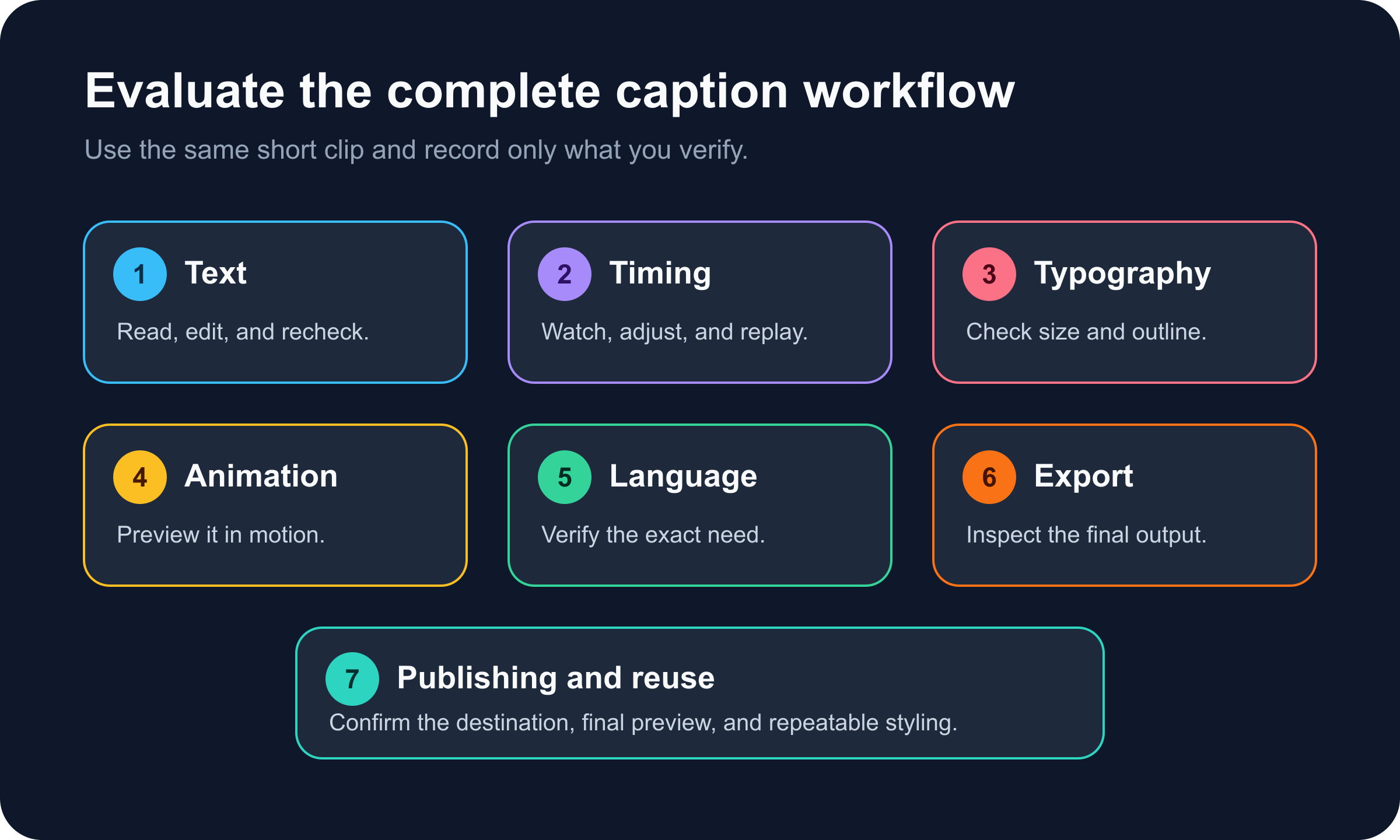
1. Read the generated text
Play the clip and read every caption as it goes by. Check names, specialist terms, punctuation, numbers, and where the sentences break. Then change one word and keep working for a few minutes to confirm the edit stays put.
Write down what you can actually change: replacing text, splitting a caption, merging two of them. Mark a control as available only after you have used it. The approved sources do not establish an accuracy rate or how long corrections take, so judge the output in front of you rather than a benchmark you assumed.
2. Inspect timing in context
Watch the clip straight through without pausing, then go back to any subtitle that landed early, landed late, or was hard to keep up with. Timing is one of the dimensions worth reviewing when you prepare subtitles for short-form video.[1]
Find the controls that move the start and end of a caption. If there is a timeline or another timing interface, shift one subtitle and replay that section. Your notes should describe what happened with this clip, not turn a single fix into a verdict on every video.
3. Check typography, size, and outline
Captions have to stay readable as the footage changes behind them and still look like they belong to the video. Typography, size, and outline sit alongside timing as practical review dimensions.[1]
Preview at least one style on the real clip. Does the typeface suit the subject? Does the text hold its size in frame? Does the outline separate the letters from both the bright and the dark parts of the shot? If you want something more expressive, look at examples of animated captions and decide which parts of that look you actually need.
4. Preview the animation
If animated captions are part of your format, watch them move. A static editor view will not tell you whether an entrance or an emphasis effect still feels right on the twentieth caption.
Confirm which animation controls are documented, then preview the exact setting you intend to use. Watch how it behaves across caption changes, and note any manual fixes you make along the way. This is a workflow check. It is not evidence that one animation style performs better than another.
5. Verify the language you need
Treat language support as a question, not a checkbox. Confirm that your specific language is documented, then run your own spoken material through it and have the result read by someone who can judge that language.
Keep three things separate in your notes: interface language, transcription language, and translated subtitles. A tool may describe them as distinct capabilities. Credit only the one you can find and verify.
6. Test export and publishing fit
Decide what output you need before you export anything. Then run one export and open the file the same way your publishing tool or your audience will.
Check the export choices inside the product rather than assuming a format, a resolution, a watermark policy, or a plan entitlement. The approved evidence does not establish current pricing or plan terms. If publishing happens inside the product, give it its own checklist row and confirm the destination and the final preview before you rely on it.
7. Check whether the styling is reusable
Styling work adds up when you publish a series. CloudCap describes a one-click way to reach the same polished caption finish instead of rebuilding the styling for every video.[1] Product behavior changes, so confirm that workflow on the cited page and in the product itself before you publish or commit to it.
If you are evaluating CloudCap, apply the look you want, move to another sample or project if the product allows it, and see what carries over. Record only what you observe. The source supports CloudCap's description of the workflow. It does not establish measured time savings or a comparison against every alternative.
A hypothetical worked example
This example shows how the checklist runs. It is not a report of a product test, and it contains no measured result.
Imagine a creator choosing a generator for a weekly series. They pick one representative clip and draw a seven-row sheet: text, timing, typography, animation, language, export, publishing. Every row gets one of three statuses: documented, checked on this clip, needs follow-up.
They generate the subtitles and read the whole script against the audio. They inspect the timing and make one test adjustment. They preview their typography, size, and outline over several different frames, then watch the animation they chose in motion. They confirm the language they need in the product's current documentation and have that output reviewed by someone who reads it. Last, they run the export they intend to use and open it in their normal publishing path.
None of that turns into an accuracy percentage or a promise about speed. The creator ends with a short record of what the product documents, what they checked themselves, and what is still unknown. That record is what makes the next evaluation comparable.
Ottieni questo look in un clic
Non dovrebbe essere necessario impostare nessuno di questi manualmente. CakeCut applica sottotitoli premium dei creatori (sincronizzazione a livello di parola e stili che interrompono lo scorrimento) al tuo video con un clic.
Make the decision from your own evidence
The evaluation worth trusting is the one you can run again. Same clip, same checklist, same note format for every option. Keep the documentation apart from what you saw on your own footage, and leave the unknowns marked as unknown instead of filling them in.
Before you commit, walk the whole path once more: edit the text, check the timing, preview the style and the animation, verify the language, export, and look at the published result. That will not hand you a universal verdict on the tool. It will tell you whether it fits the short-video workflow you actually have.