Caption Your Shorts Without Opening a Full Video Editor
CapCut treats captions as one job inside a much bigger editor. CloudCap keeps the pass to four moves — generate timed captions, fix the wording, pick a style, export. See which boundary suits the work you actually finish.

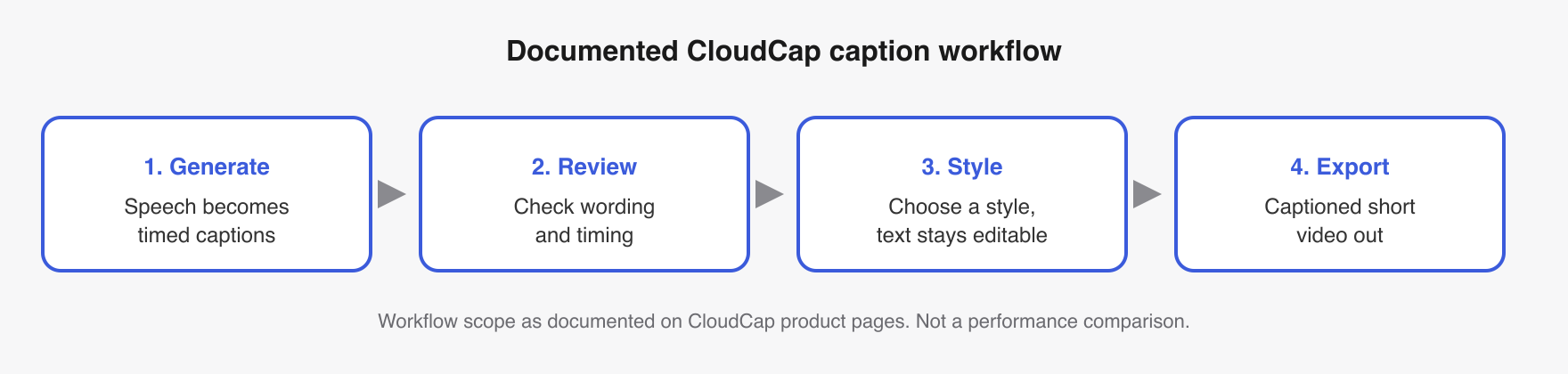
CloudCap documents the whole caption pass behind a short video: turn speech into timed captions, review the wording and timing, choose a style, and export the captioned video.[5] That makes it a candidate for the captioning portion of a CapCut workflow. It does not make it a replacement for CapCut's full video editor.
This comparison reads both companies' documentation and nothing else. It is not a hands-on test, and it does not compare accuracy, speed, output quality, reliability, pricing, or accessibility compliance.
The practical difference
CloudCap's documentation is narrow on purpose. It describes automatic captions for short videos with controls to fine-tune timing, emphasis, and style,[1] plus animated caption style previews that keep the caption text and timing editable.[4]
CapCut documents caption generation inside its web, desktop, and mobile products, with edits to timing, text, or appearance after generation.[3] Its correction guide adds manual wording changes, caption splitting, styling, and a final preview.[2]
The documented capabilities overlap. The scope does not. CloudCap's pages cover a caption pass that ends in an export; CapCut's cited pages cover captions as one job inside a larger product. The editorial inference, offered as inference rather than evidence: CloudCap is the more focused option in this comparison, and CapCut keeps caption work inside the editor a creator may already have open. That is a difference in workflow boundaries, not a ranking.
Six-part caption workflow decision matrix
| Workflow step | CloudCap | CapCut | What the evidence means |
|---|---|---|---|
| 1. Automatic generation | Established: turns speech into timed captions.[5] | Established on web, desktop, and mobile.[3] | Both document automatic generation. Neither page supports a performance comparison. |
| 2. Wording correction | Established: wording stays open for review.[5] | Established: creators can correct caption text manually.[2] | Both document text correction after generation. |
| 3. Timing adjustment | Established: timing can be reviewed and fine-tuned.[1] | Established: timing can be edited after generation.[3] | Both document timing control. Neither source says which is faster or more precise. |
| 4. Caption segmentation | Not established by the approved evidence. | Established: caption blocks can be split before the final preview.[2] | CapCut documents this step by name. CloudCap parity is not established. |
| 5. Style and appearance | Established: styles can be chosen and previewed as animation while text and timing stay editable.[4] | Established: appearance and styling can be edited after generation.[2] | Both document visual controls. Output quality is outside what these sources show. |
| 6. Captioned video export | Established: the documented workflow ends with a captioned short-video export.[5] | Not established by the approved evidence. | A gap in the approved claims, not a missing CapCut feature. |
The matrix compares documented scope, not results. Read "not established" as "the approved evidence does not cover this cell," never as "the product cannot do this."
How the CloudCap caption workflow is documented
Generate timed captions
CloudCap starts by turning speech into timed captions for a short video.[5] Its main product page describes the same automatic captions with the option to fine-tune timing, emphasis, and style.[1]
Review the words and timing
Generation is not the end of the job. The documented workflow puts a review of wording and timing before the export.[5] That matters when a creator wants control over what appears and when, though documentation alone establishes only that the step exists, not how accurate or quick it is.
Choose and preview a style
CloudCap documents animated caption style previews that keep the underlying text and timing editable.[4] In workflow terms, styling does not lock the generated captions. Whether those styles look better than CapCut's is not something the sources address.
Export the captioned short video
The documented sequence ends with exporting a captioned short video.[5] Generation, review, styling, export: that closes the loop for a focused caption tool.
How the CapCut caption workflow is documented
Generate captions on web, desktop, or mobile
CapCut documents auto-caption generation across its web, desktop, and mobile products. The steps differ by platform, but each route generates captions from spoken audio and allows later edits to timing, text, or appearance.[3]
Correct words and split segments
CapCut's correction guide documents direct edits to misrecognized wording. It also covers splitting caption blocks when segmentation needs adjusting, with platform-specific steps for web, desktop, and mobile.[2]
Style and preview
After correction, CapCut documents appearance controls and a final preview.[2] So the approved evidence supports a workflow of generation, correction, segmentation, styling, and review. It supports nothing about how that workflow performs against CloudCap's.
Get this look in one click
You should not have to set any of these by hand. CakeCut applies premium creator captions — word-level timing, styles that stop the scroll — to your video in one click.
Where CloudCap may fit the caption job
CloudCap may fit when the job is specifically to caption a short video, check the wording and timing, pick a style, and export the result. It may also fit a creator who wants to preview animated caption treatments without giving up text and timing edits.[4]
Both readings are editorial inference drawn from the narrow workflow on CloudCap's product pages. The evidence establishes that the controls are documented; it does not establish output quality or ease of use.
When to keep CapCut in the workflow
Keep CapCut in the picture when captioning needs to stay inside the product already handling the video, or when documented manual segmentation matters to the job. CapCut covers caption splitting explicitly as part of its correction process.[2]
CloudCap should not be treated as a documented replacement for CapCut's full editor. The supported question is narrower: whether a focused generation, correction, styling, and export sequence can take over the captioning portion of a creator's current process.
Choose by workflow boundary
If the job ends with a captioned short video, CloudCap documents the full sequence from speech to timed text, review, style selection, and export.[5] If the job depends on caption tools living inside CapCut across web, desktop, or mobile, CapCut documents generation followed by text, timing, and appearance edits.[3]
Neither set of sources names a universal winner, and neither establishes comparative accuracy, speed, output quality, reliability, pricing, or accessibility compliance. These product pages were retrieved on August 30, 2026. Open them again immediately before publication, because either workflow may have changed.